Posts

MULTIPLE STYLE SHEET

  Multiple Style Sheets If some properties have been set for the same selector in different style sheets, the values will be inherited from the more specific style sheet. For example, an external style sheet has these properties for the h3 selector: h3 { color: red; text-align: left; font-size: 8pt } And an internal style sheet has these properties for the h3 selector: h3 { text-align: right; font-size: 20pt } If the page with the internal style sheet also links to the external style sheet the properties for h3 will be: color: red; text-align: right; font-size: 20pt

INTERNAL STYLE SHEET

  Internal Style Sheet An internal style sheet should be used when a single document has a unique style. You define internal styles in the head section by using the <style> tag, like this: <head> <style type="text/css"> hr {color: sienna} p {margin-left: 20px} body {background-image: url("images/back40.gif")} </style> </head> The browser will now read the style definitions, and format the document according to it. Note: A browser normally ignores unknown tags. This means that an old browser that does not support styles, will ignore the <style> tag, but the content of the <style> tag will be displayed on the page. It is possible to prevent an old browser from displaying the content by hiding it in the HTML comment element: <head> <style type="text/css"> <!-- hr {color: sienna} p {margin-left: 20px} body {background-image: url("images/back40.gif")} --> </st...

INLINE STYLE SHEET

  Inline Styles An inline style loses many of the advantages of style sheets by mixing content with presentation. Use this method sparingly, such as when a style is to be applied to a single occurrence of an element. To use inline styles you use the style attribute in the relevant tag. The style attribute can contain any CSS property. The example shows how to change the color and the left margin of a paragraph: <p style="color: sienna; margin-left: 20px"> This is a paragraph </p>

HOW TO INSERT STYLE SHEET

  How to Insert a Style Sheet When a browser reads a style sheet, it will format the document according to it. There are three ways of inserting a style sheet: External Style Sheet An external style sheet is ideal when the style is applied to many pages. With an external style sheet, you can change the look of an entire Web site by changing one file. Each page must link to the style sheet using the <link> tag. The <link> tag goes inside the head section: <head> <link rel="stylesheet" type="text/css" href="mystyle.css" /> </head> The browser will read the style definitions from the file mystyle.css, and format the document according to it. An external style sheet can be written in any text editor. The file should not contain any html tags. Your style sheet should be saved with a .css extension. An example of a style sheet file is shown below: hr {color: sienna} p {margin-left: 20px} body {background-image: url...

CSS COMMENT

  CSS Comments Comments are used to explain your code, and may help you when you edit the source code at a later date. A comment will be ignored by browsers. A CSS comment begins with "/*", and ends with "*/", like this:   /* This is a comment */ p { text-align: center; /* This is another comment */   color: black; font-family: arial }

THE CSS CLASS SELECTOR

  The class Selector With the class selector you can define different styles for the same type of HTML element. Say that you would like to have two types of paragraphs in your document: one right-aligned paragraph, and one center-aligned paragraph. Here is how you can do it with styles: p.right {text-align: right} p.center {text-align: center} You have to use the class attribute in your HTML document: <p class="right"> This paragraph will be right-aligned. </p> <p class="center"> This paragraph will be center-aligned. </p> Note: To apply more than one class per given element, the syntax is: <p class="center bold">   This is a paragraph. </p> The paragraph above will be styled by the class "center" AND the class "bold". You can also omit the tag name in the selector to define a style that will be used by all HTML elements that have a certain class. In the example below, all ...

CSS GROUPING

  CSS Grouping You can group selectors. Separate each selector with a comma. In the example below we have grouped all the header elements. All header elements will be displayed in green text  color:  h1,h2,h3,h4,h5,h6 { color: green }

STYLES CAN SAVE ALOTS OF WORK

  Style Sheets Can Save a Lot of Work Styles sheets define HOW HTML elements are to be displayed, just like the font tag and the color attribute in HTML 3.2. Styles are normally saved in external .css files. External style sheets enable you to change the appearance and layout of all the pages in your Web, just by editing one single CSS document! CSS is a breakthrough in Web design because it allows developers to control the style and layout of multiple Web pages all at once. As a Web developer you can define a style for each HTML element and apply it to as many Web pages as you want. To make a global change, simply change the style, and all elements in the Web are updated automatically. Multiple Styles Will Cascade into One Style sheets allow style information to be specified in many ways. Styles can be specified inside a single HTML element, inside the <head> element of an HTML page, or in an external CSS file. Even multiple external style sheets can be referenced inside...

STYLES SOLVE A COMMON PROBLEM

  Styles Solve a Common Problem HTML tags were originally designed to define the content of a document. They were supposed to say "This is a header", "This is a paragraph", "This is a table", by using tags like <h1>, <p>, <table>, and so on. The layout of the document was supposed to be taken care of by the browser, without using any formatting tags. As the two major browsers - Netscape and Internet Explorer - continued to add new HTML tags and attributes (like the <font> tag and the color attribute) to the original HTML specification, it became more and more difficult to create Web sites where the content of HTML documents was clearly separated from the document's presentation layout. To solve this problem, the World Wide Web Consortium (W3C) - the non profit, standard setting consortium, responsible for standardizing HTML - created STYLES in addition to HTML 4.0. All major browsers support Cascading Style Sheets.

INTRODUCTION TO CSS

  INTRODUCTION TO CSS What is CSS? ü   CSS stands for Cascading Style Sheets ü   Styles define how to display HTML elements ü   Styles are normally stored in Style Sheets ü   Styles were added to HTML 4.0 to solve a problem ü   External Style Sheets can save you a lot of work ü   External Style Sheets are stored in CSS files ü   Multiple style definitions will cascade into one CSS Demo CSCSS Demo With CSS, your HTML documents can be displayed using different output styles:

HTML TABLE

  HTML Tables With HTML you can create tables. In most applications, a table is commonly used to present tabular information such as schedules, statistics, calendars, etc. In the world of HTML, a table is also used for these purposes, but it is more commonly used for organizing the content of complex web pages. Many web designers prefer to create on overall web site layout through the use of a single table. A table lets web designers make use of rows and columns so they can specify precisely where text, images, and objects are to be placed within their documents. This is what makes the <table> element one of the most powerful and versatile of all HTML tags. The following gives an overview of the elements and attributes that may be used with the <table> tag: Table Elements and Corresponding Attributes <table> </table> align="" [left, center, right] - specifies the horizontal alignment of the table. border="...

HTML MENU BAR

 <!DOCTYPE html> <html> <head> <title>Menu</title> <style type="text/css"> body{ background: green; } ul{ background: red; color:red; list-style-type: none; font-size: 23px; } a{ text-decoration: none; overflow: inherit; font-size: 30px; color: white; } ul li{ display: inline; margin-top: 0px; margin-left: 100px; margin-right: 20px; } nav{ background: red; text-align: center; color:white; font-size: 26px; font-weight: bold; margin-top: 0px; } </style> </head> <body> <div class="menu"> <ul> <li><a href="">Home</a></li> <li><a href="">About</a></li> <li><a href="">Contact</a></li> </ul> <nav class="welcome">WELCOME TO KT MANYANGOBE HAUSA SITE</nav> ...

DATA COLLECTION USING HTML

Image
 <!DOCTYPE html> <html> <head> <title>Welcome</title> </head> <center>DATA COLLECTION</html></center> <body> <form> <b> Sex: <input type="radio" name="sex" value="male">Male <input type="radio" name="sex" value="male">Female <br> <b> Schools Attended: <br> <b> Primary School: <input type="checkbox" name="School" value="Primary"> <br> Secondary School: <input type="checkbox" name="School" value="Secondary"> <br> Tertiary Institution: <input type="checkbox" name="School" value="Tertiary"> <br> Favourite Polytechnic: <select name="Favourite Polytechnic"> <option value="Huk Poly"> H.U.K Polytechnic <option value="Kad Poly"> Kaduna Polytechn...

CREATING AN INPUT FORM WITH BACKGROUND COLOR AND IMAGE

Image
 <!DOCTYPE> <html> <head><title></title> </head> <style> form{ input-size:100px; } </style> <body bgcolor="green"> <center><img src="pictures/uli.png" width="150" height="150"></center> <p> <font size="14pt" face="arial" color="red"> <center><b><h3>Input Form</h3></b></center> </font> <form> <center> <b>Enter you Names</b> <br><br> First Name: <input type="text" name="firstname"> <br><br> Last Name: <input type="text" name="firstname"> <br> </center></form> </body> </html>

ADDING NUMBERED LIST ON HTML

Image
ADDING NUMBERED LIST ON HTML In html there is ordered and unordered list which is Ordered list: is a type of list that can be listed with a letter (a or A), number (1) and Roman numbers which is (i or I) while Unordered list:   is the type of list which is bulletin. But today we are going to discuss on ordered list on Html: <!DOCTYPE> <html> <head><title></title> </head> <body> <ol type="1"> <li> Auwal Yusuf</li> <li> Ibrahim Sani</li> <li> Maryam Fahad</li> <li> Bashir Buhari</li> </ol> </body> </html> Or for letters <!DOCTYPE> <html> <head><title></title> </head> <body> <ol type="A"> <li> Auwal Yusuf</li> <li> Ibrahim Sani</li> <li> Maryam Fahad</li> <li> Bashir Buhari</li> </ol> </body>...

HTML BACKGROUNDS

Image
  HTML BACKGROUNDS Backgrounds The <body> tag has two attributes where you can specify backgrounds. The background can be a color or an image. Bgcolor The bgcolor attribute specifies a background-color for an HTML page. The value of this attribute can be a hexadecimal number, an RGB value, or a color name: <body bgcolor="#111111"> <body bgcolor="rgb(1,2,3)"> <body bgcolor="red"> Background The background attribute specifies a background-image for an HTML page. The value of this attribute is the URL of the image you want to use. If the image is smaller than the browser window, the image will repeat itself until it fills the entire browser window. <body background=”umyu.png”> For the background image you have to specify the folder of the image in your computer or you will save it the same place with your html file for example: If you create the folder of your pictures at the same place of your html file you can only use: ...

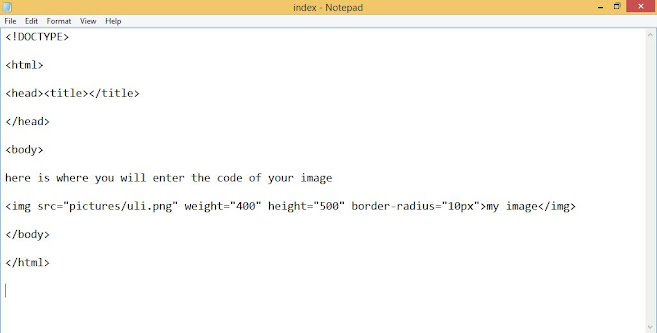
HOW TO ADD IMAGE AND GIVE IT A SIZE IN A WEBSITE

Image
 HOW TO ADD IMAGE AND GIVE IT A SIZE IN A WEBSITE. First you have to locate where you save your image and copy the name of the picture and its properties.  and then come into the body of your webpage for example: <!DOCTYPE> <html> <head><title></title> </head> <body> here is where you will enter the code of your image <img src="pictures/uli.png" weight="400" height="500" border-radius="10px">my image</img> </body> </html> the code that is up is the code of image in a webpage but without indicating the name of the picture. The pictures i put is the folder the the image is and advisably when you are coding html you have to be  creating folders separately for images, videos, css, and you have to save your html as index so that it will be easier for you host your website. the blue text inside the html code is the code of image the sizes and you can put it a shape by putting border radi...

HTML HEADINGS

Image
 There are six html headings which are as follows in the html format. <!DOCTYPE> <html> <head> <title>my heading</title> </head> <body> <h1>this is my first heading</h1> <h2>this is my second heading</h2> <h3>this is my third heading</h3> <h4>this is my fourth heading</h4> <h5>this is my fifth heading</h5> <h6>this is my sixth heading</h6> </body> </html> the following codes is the headings which starts from heading one to six which h1 is bigger than h2, h2 is bigger than h3, h3 is bigger than h4, h4 is bigger than h5 and h5 is bigger than h6 which is the smallest heading in html. The picture above is the html headings example in a text editor That is run example of html heading in a web browser

PROCESS OF WEB DESIGN: (HTML, CSS AND JAVA SCRIFT)

 There are series of steps that the web designer follows to create a perfect website. which are as follows: 1. Planning:      B efore you get an idea of creating website you have to first plan what to host in your site and how your site will looks like. 2. Content Building:     After you create a plan on how your site will looks like, you have to build the content of the website that will attract people to visit your web site. But you have to know what your content will be leading to. 3. Designing:      Here is where you will design your website. This is the worst step, but if you completed the design and content building, this section is the most finniest, and most likely the most profitable. 4. Development:      After you have finished with all the above processes, you will turn into XHTML/CSS/PHP/MYSQL and anything else your website needs. Developing or development refers to the technical side of the web design that is the c...

HOW HTML WORKS IN A WEB BROWSER

Based on Standard generalized Mark up language (SGML), Html concepts makes the use of Tags. These Tags can also be called mark up that alerts the browser that the document contains hyper text so it will render it as Html document